
Appearance
13. ClinVar Reanalysis
The ClinVar reanalysis process is used to identify new P/LP variants or variants that have been upgraded to P/LP from a previously B/LB or uncertain assertion that are present in probands. The following sections will describe how the ClinVar reanalysis process works; which variants will be identified; how the variants can be found and reviewed, and; how to be notified when updates are found.
13.1. The ClinVar reanalysis methodology
Mosaic automatically checks to determine when a new ClinVar release is available and all variants from this new version are made available in Mosaic (see the information variant annotations in section 10 to learn about annotation versions to learn how to view or filter on specific versions). Mosaic then determines what has changed between the previous and current versions, in particular identifying new P/LP variants and variants upgraded to P/LP. This process can be customized to filter variants on additional criteria. For example, variants could be required to have a gnomAD allele frequency below a specific threshold. Next, all projects that are included in ClinVar reanalysis (work with Frameshift to identify these) are checked to determine which of these variants are present in the proband. Variants are aiigned to one of 3 categories:
Primary Variants: New or upgraded P/LP variants present in the proband and present in a gene that is associated with an HPO term assigned to the proband
Actionable Variants: New or upgraded P/LP variants present in the proband not in an HPO associated gene, but in one of the ACMG secondary findings genes
Other Variants: New or upgraded P/LP variants present in the proband that are neither HPO associated or in an ACMG gene. These are variants that could be useful in gene discovery
All variants will be available within the Mosaic project, but notifications will only be sent for primary variants. The rationale for this is that users to not wish to be burdened with too many variants and so the primary variants are an attempt to only notify users of variants with the highest likelihood of being of utility.
13.2. How many variants will be identified with each update?
Users typically have 100s or 1000s of individual cases and do not have time to review hundreds of highlighted variants every week. By applying allele frequency and HPO filters, the number of primary variants returned per genome per update is very low, typically 0. This ensures that the burden of review is kept low. These filters can always be modified to alter the balance between returning the smallest number of variants and returning all variants with any potential to be of interest.
13.3. How to receive notifications of variants to review
When the ClinVar review process is set up for specific cases (typically for collections), a set of email addresses is associated with the process. When variants for review have been identified, an email is sent to this list to inform them of these updates. Additionally, users should "subscribe" to projects or collections to receive notifications in Mosaic when variants for review are identified. To subscribe to a collection (and receive updates on all projects within the collection), go to Settings & More > Settings and then select Subscriptions from User Collection Settings (see Figure 13.1.) and toggle on the Project Tasks subscription. Clicking on Tasks in the menu bar will, by default, show tasks for projects that you are subscribed to (see section 11 for more information on Tasks).
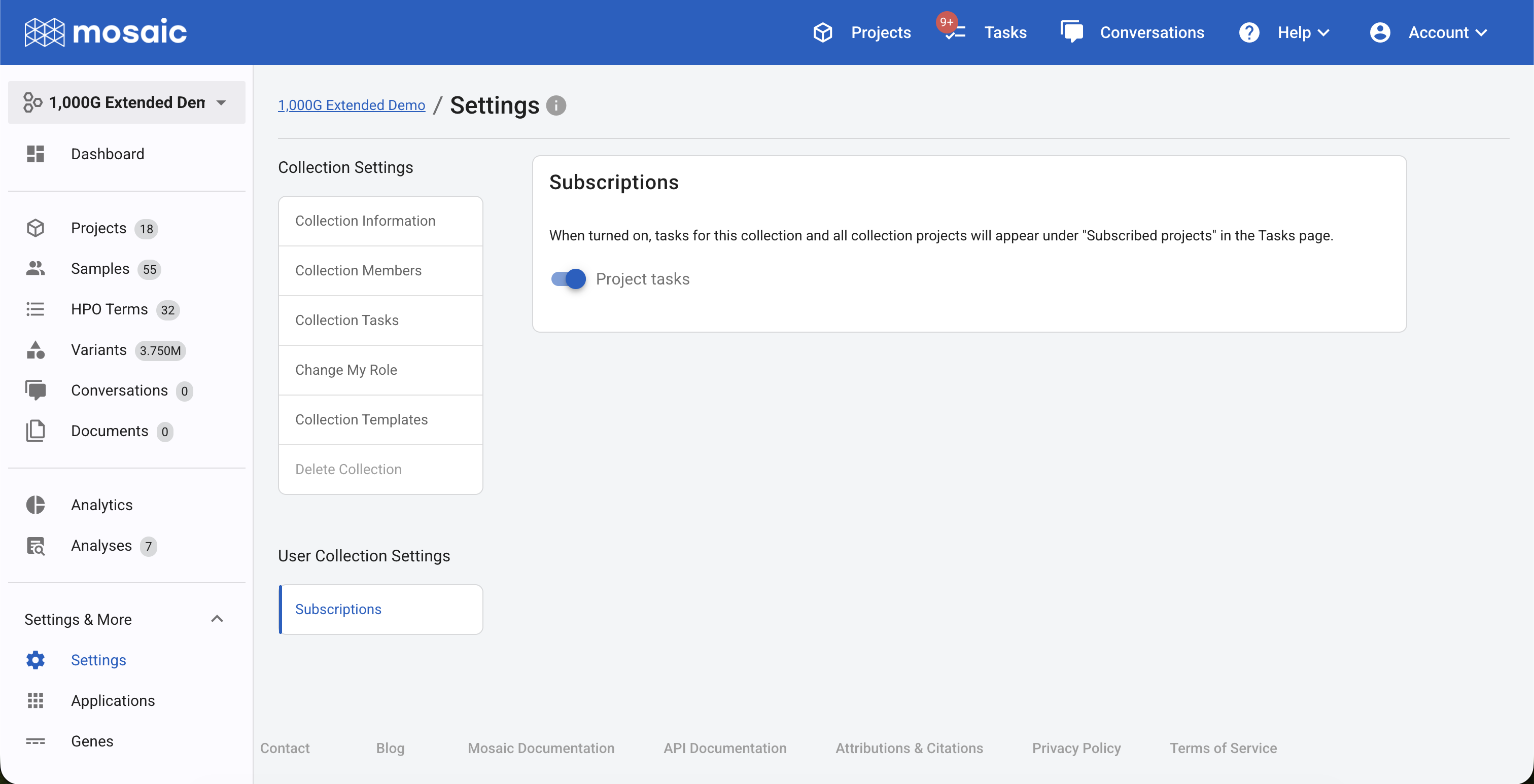
Figure 13.1. Subscribing to a collection to receive notifications about tasks in Mosaic
13.4. How to review the identified variants
ClinVar variants for review can be accessed in 2 primary ways:
From the Tasks menu: If there are variants to review, they can be found from the menu bar, Tasks option. By default, clicking on Tasks in the menu bar will show you all outstanding tasks in projects you are subscribed to (see 13.3 above). You can click on All Projects (Figure 13.2.) to see all outstanding tasks in all projects. You can limit the view to ClinVar tasks by selecting Review Variants from the Task Category menu. The Status menu allows you to toggle between completed and pending tasks. Click on any task to be taken to the variants to review, or click on the radio button at the left of the task to mark the task as complete.

Figure 13.2. Viewing ClinVar variant review tasks from the Tasks menu bar
From within the Project: If a project has outstanding rewiews to perform, an alert (Figure 13.3.) will be present at the top of all project pages. Click the Review Task to be taken to the variants to review, or click the Mark as Completed button to mark it as complete.

Figure 13.3. ClinVar variant alert in a project
13.5. Completing tasks
As mentioned in 13.4. you can mark a task as complete from the Tasks page or by clicking Mark as Completed in the alert on the project page. Completed tasks are hidden by default on the Tasks page and alerts will be removed from the project pages. You can find completed projects on the Tasks page by setting the Status to Completed or removing the status completely